

If you’re building your speaking business, you’ve got to have the right marketing tools and materials ready to go. We want to take a look at which marketing materials you can put in place to help you promote yourself as a speaker, specifically your Speaker One Sheet.
Here is a shortlist of some of the materials: click the links jump to an article which dives deeper into the specific marketing assets you can create:
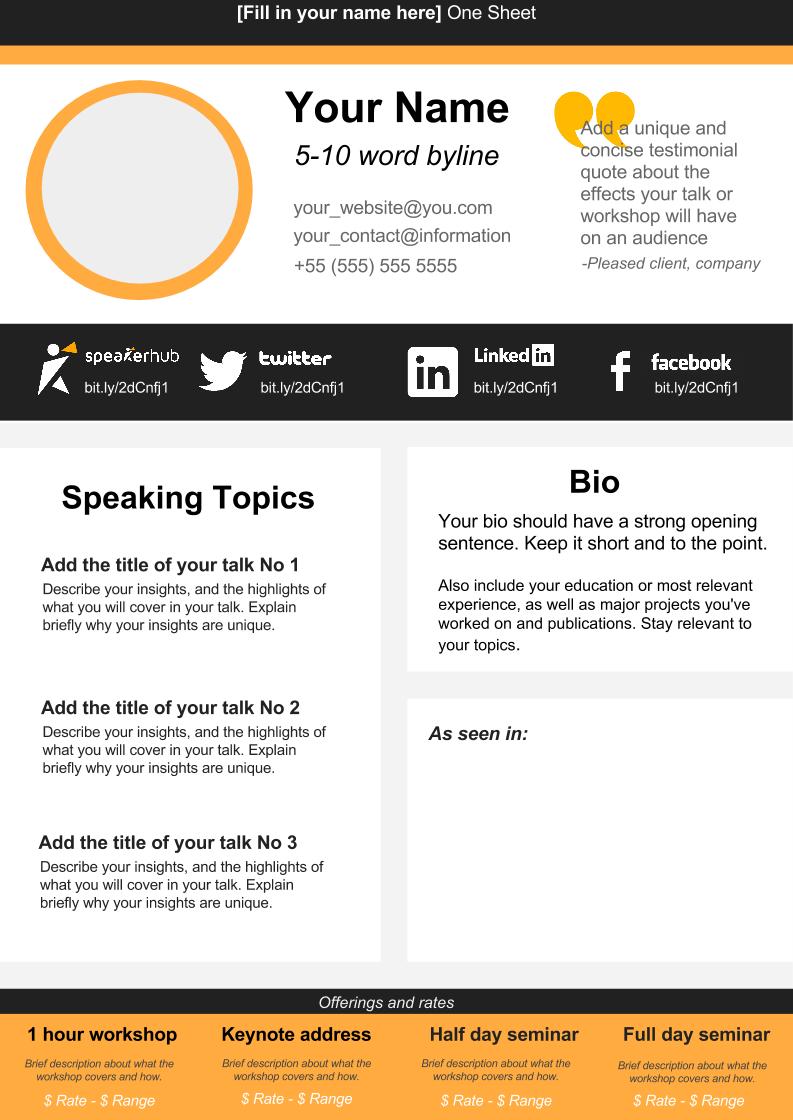
A Speaker One Sheet is an attractively-designed, single-page PDF that explains your topics and expertise, with your contact details and rates.
Maybe you’ve had the idea of creating a one-sheet for some time but hit some obstacles like:
If you’d like to create a One Sheet, we’ve got a template that you can use and download and easily print off, share on social media, or send directly to an event planner. Ultimately, you will be creating the One Page yourself, but we’ve got a helpful template and some instructions to make it easy.
And the best news is? In a few months, we at SpeakerHub will be launching an automated one sheet creator based on your profile page data.
Here is what the one page looks like:
What you are going to need:
1. Half an hour
2. A nice headshot.
3. Bit.ly links for your
4. Logos for the companies you have worked with or been published in
5. Basic knowledge of how to use Google Slides (but don’t worry, we will help!)
Step One: Click on this link. This the template.
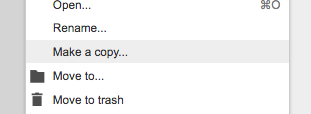
Step Two: Go to File, and scroll down until you see “Make a copy”. Save and rename it as [Your Name] Speaker One Sheet.
Step Three: Make changes to personalize this template.
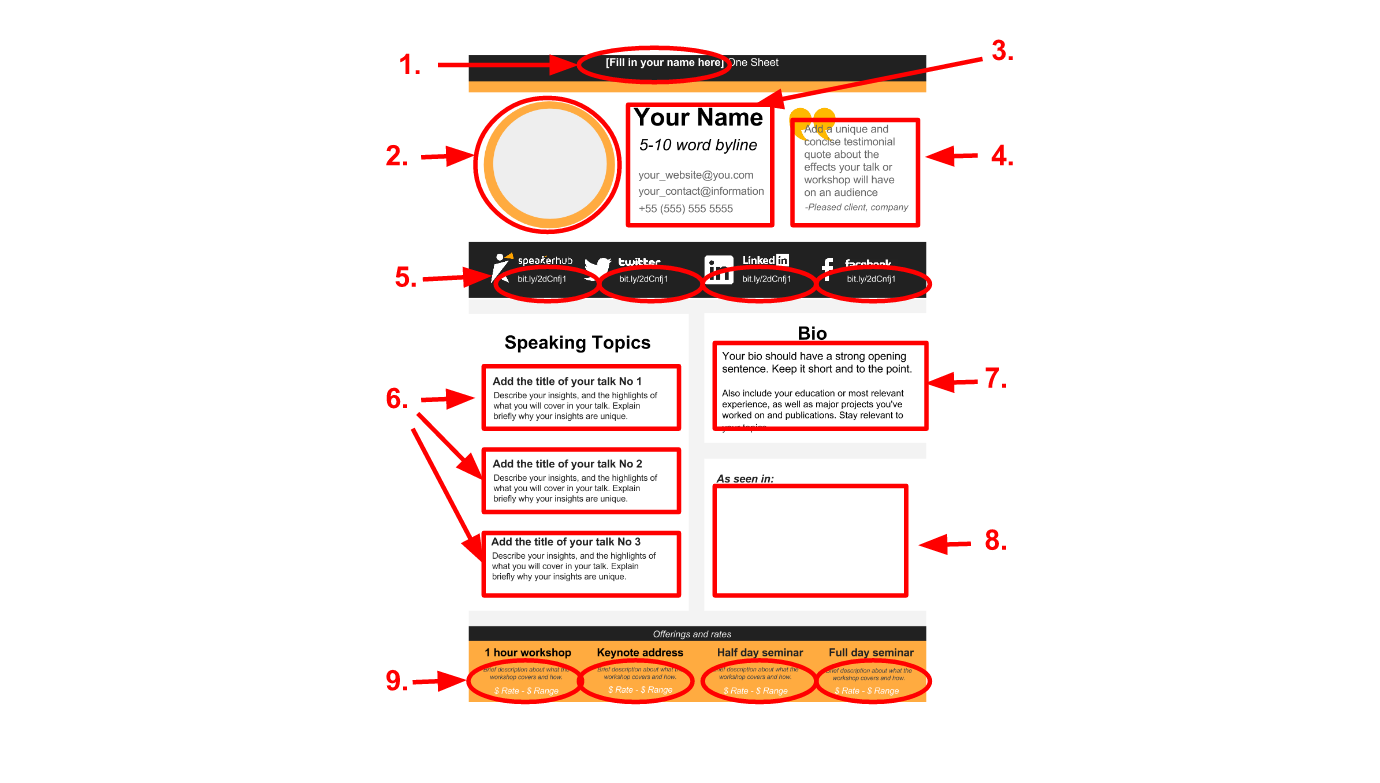
Just to make sure you don’t miss anything, here are the things you need to change:
If you know how to use Google Slides pretty well, then: crack on! If you are new to Google Slides and need a bit of extra guidance, read below.
Change the text on:
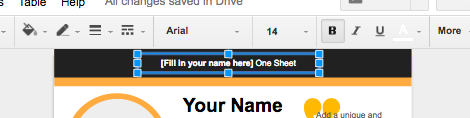
Simply click on the “Text box”, delete the contents, and type new. If you’d like to change the font or size, on the formatting toolbar you will see various drop-down options allowing you to do so.
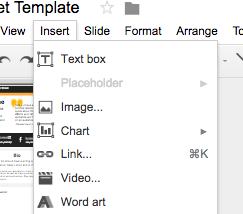
Go to the “Insert” heading on the top toolbar, and scroll down to “Image”
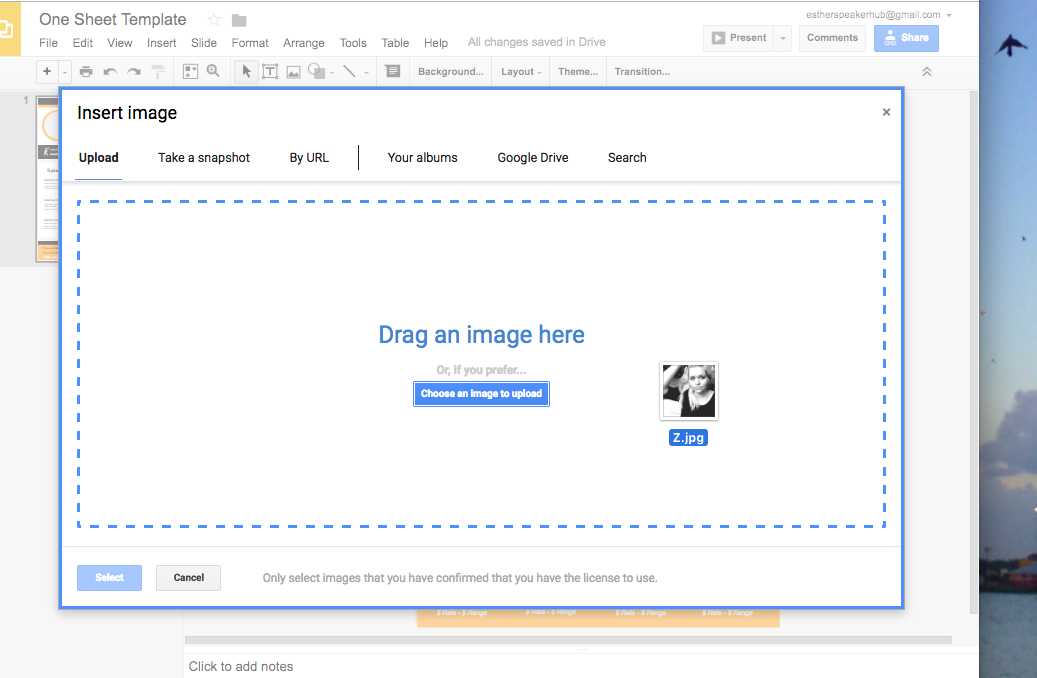
Make sure “Upload” is highlighted, then either select your photo from the files on your computer or drag into the box.
Once it has been uploaded, drag it over the top of the circle.
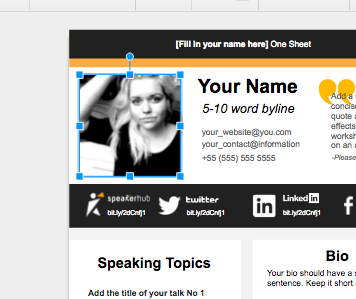
You can leave it as a square if you wish, but if you’d like to put it in the circle, go to the “Crop” icon on the formatting toolbar.
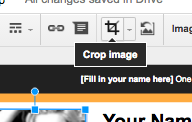
Tip: Make sure you are selecting the drop-down menu by clicking on the the downward facing arrow.
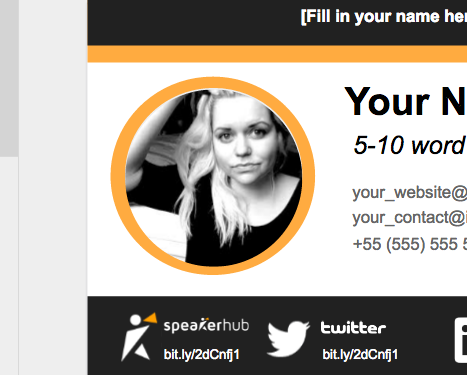
Select the circle icon. You may need to shrink the circle down to fit in the orange circle, you can do this by grabbing onto the corners and pulling it inwards or outwards.
Although you can use the whole URL, when it comes to people having to type in a web address, you want to leave as little room for error as possible.
It takes about 15 seconds to create a bit.ly shortened URL, and will save your reader a lot of time when they type it in their browser.
How to Insert logos from the organizations you’ve worked with
Collect the logos for all the organizations you’d like to feature on your one page, and save them on your computer (Google Images can be very helpful for this!)
Go to the “Insert” heading on the top toolbar, and scroll down to “Image”
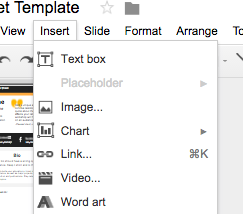
Make sure “Upload” is highlighted, then either select your photo from the files on your computer or drag into the box.
Then press “Insert” and it will pop up on the One Page. All you have to do now is resize it, and add the rest!
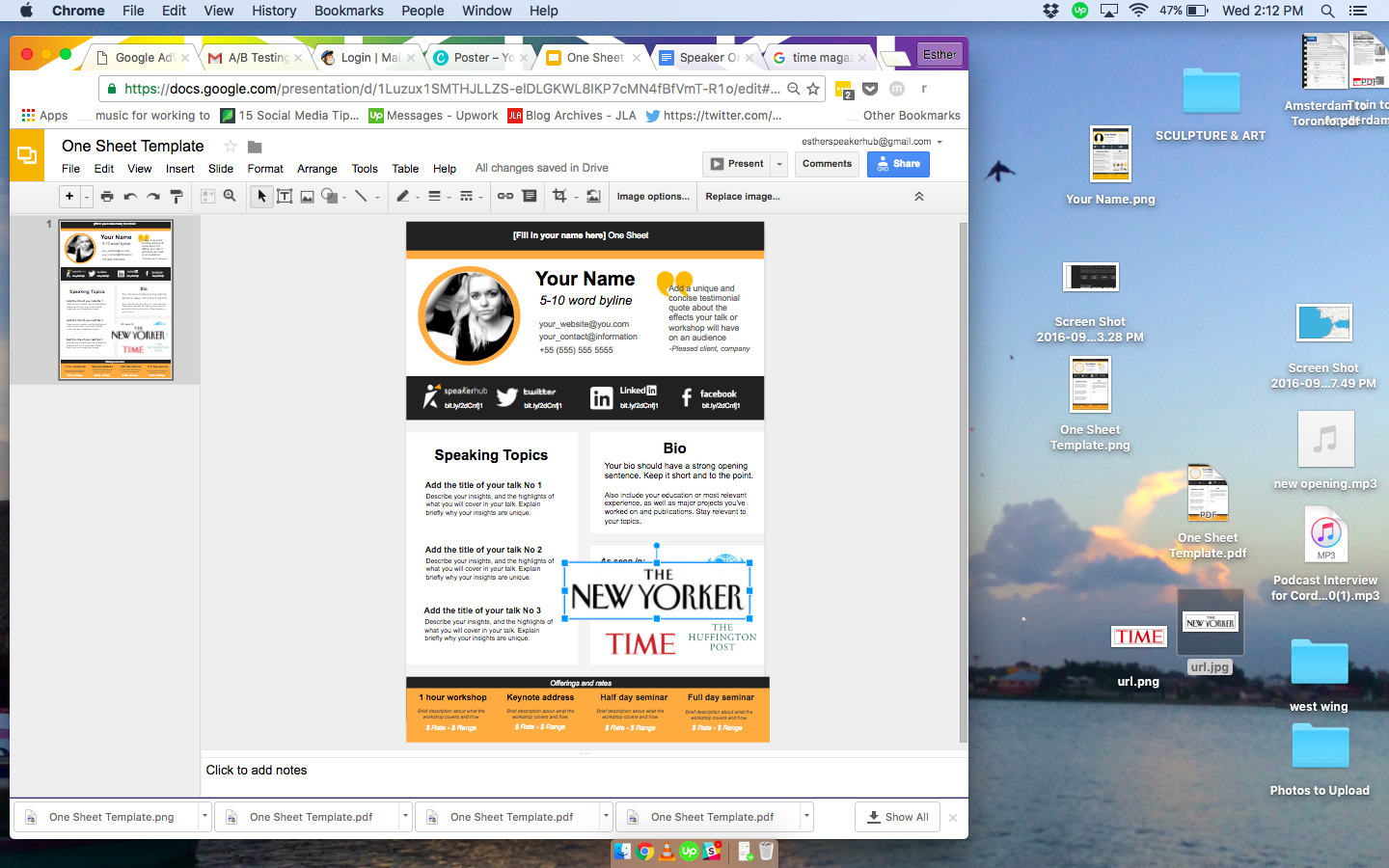
Perhaps you would not like to include your rates or don’t want to add a telephone number: no problem! This is your one sheet and you should customize it as you see fit!
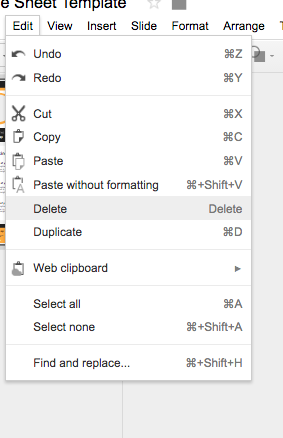
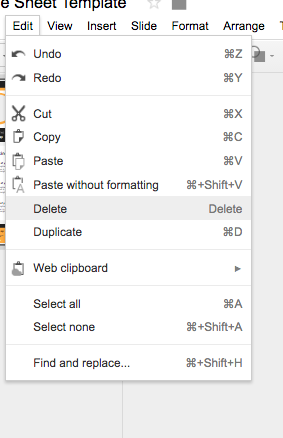
To delete elements, select them and either press “Delete” on your keyboard, or go to “Edit” and scroll down to “Delete”
Once your one sheet is ready to go, all you need to do is save it and either print it or share it as a PDF.
To do this, go to “File” and scroll down to “Download As” and select your preferred file type.
Save it to your computer, and either get it printed, or send it via email directly to the event organizer.
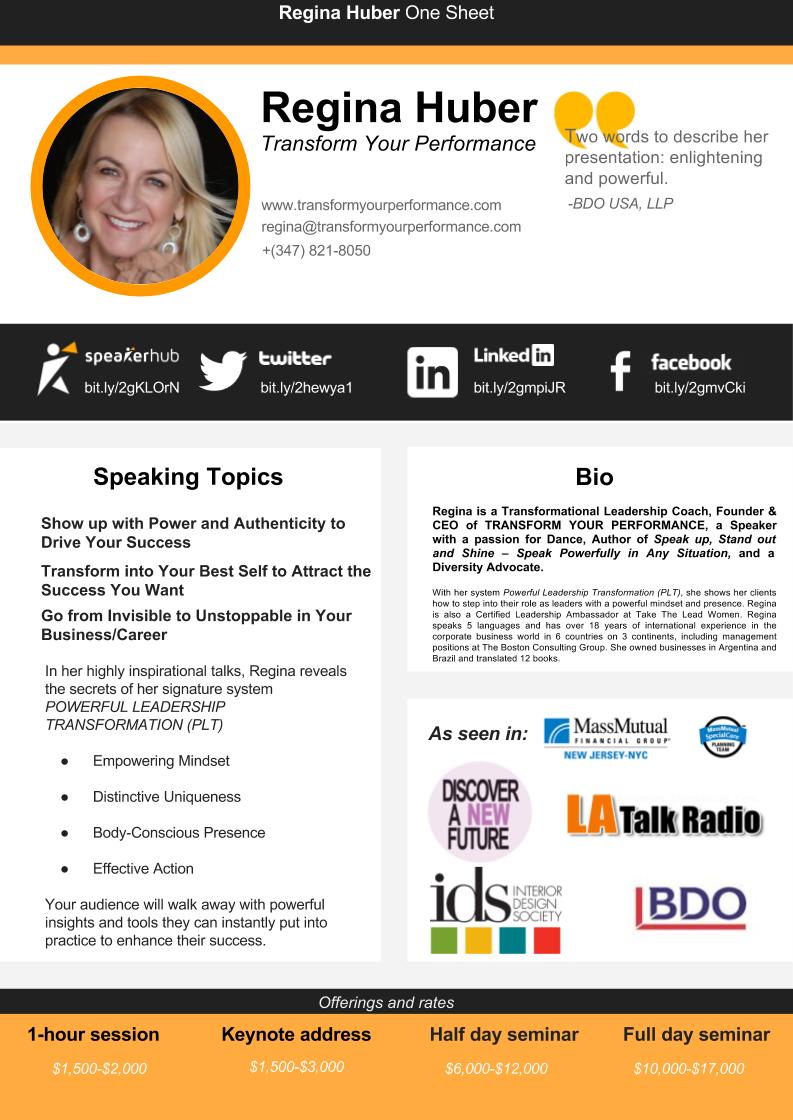
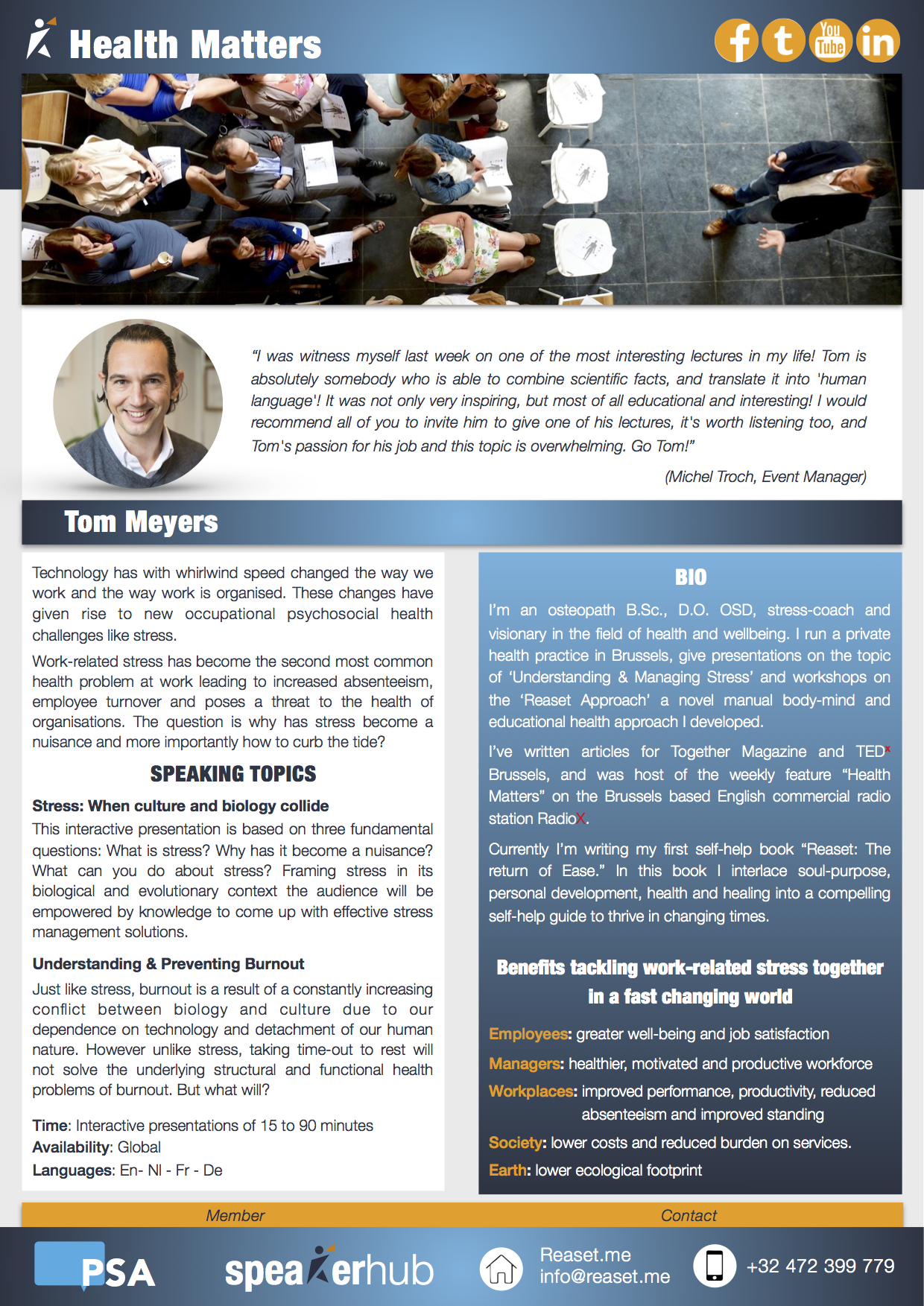
Here are a few example created by some of SpeakerHub's members:
If you have any questions about how to use the template, or want to tell us about how it has worked out for you, contact us here. We are excited to see how you customize your design!
Popular Categories